NotebookLM used to be the quiet, dependable tool in my stack — great for digesting sources I’d already gathered, not much more. That’s changed. The latest round of upgrades turns it into something far more active: it researches for you, builds presentations from a single prompt, edits its own output when you ask, and pulls live from files in a folder. I spent a day pushing on all of it. Here’s what actually worked, where it surprised me, and the couple of spots where it’s still rough.
Building a whole deck from one prompt
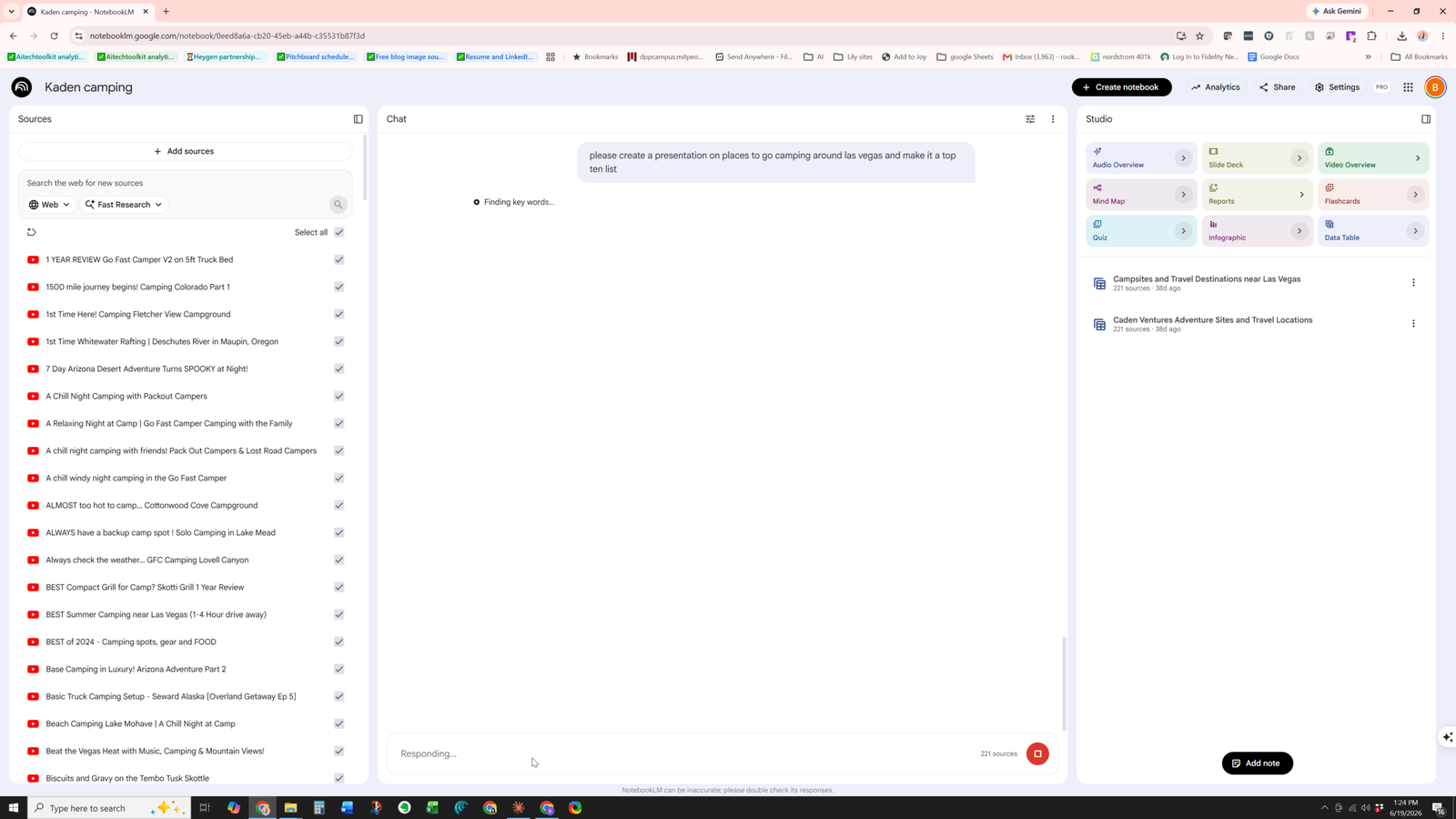
The headline change for me is that you can now go from a plain-English request to a finished presentation without assembling anything yourself. I typed “please create a presentation on places to go camping around Las Vegas and make it a top ten list” and let it run.
One prompt in, a full slate of Studio outputs ready to generate.
It didn’t just spit out bullet points. The Studio panel now offers a whole spread of outputs from the same sources — Slide Deck, Reports, Video Overview, Mind Map, Quiz, Infographic, Flashcards, and a Data Table — and it generated a genuinely structured deck off the prompt. This is the part that felt like a real step up: you describe the end product, it does the legwork.
It does its own research now
The bigger shift underneath all of this is sourcing. NotebookLM will go out and find its own material instead of waiting for you to feed it links. You pick how deep it goes — Fast Research for a quick pass, or Deep Research when you want it to dig in and pull more.
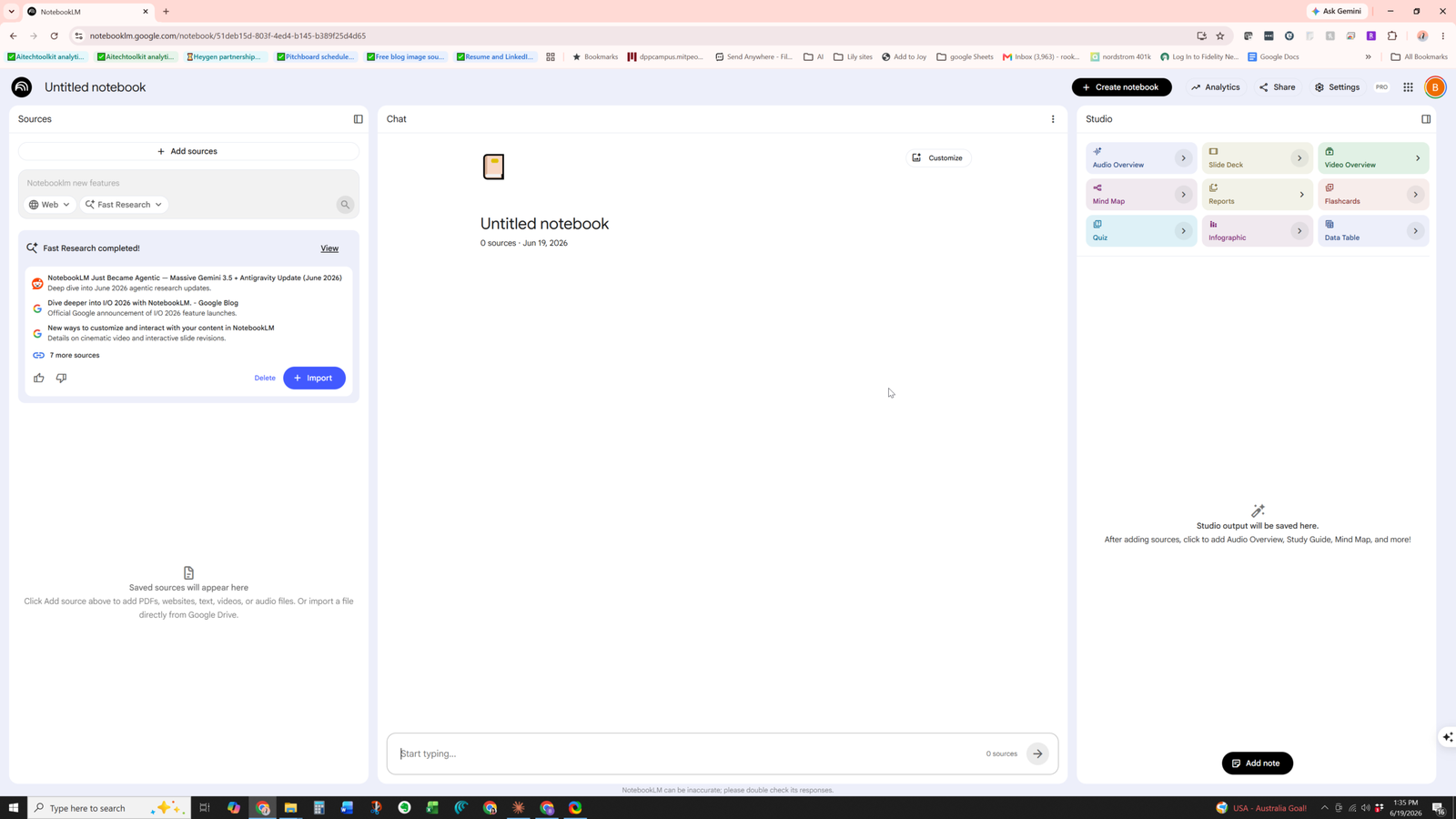
Fast Research went and found its own sources — no manual hunting required.
I ran Fast Research and it came back with a clean list of relevant sources on its own, ready to pull into the notebook. For the camping deck, it surfaced and worked from a couple hundred sources without me lifting a finger. That’s the feature I’ll use most. The old workflow of hunting down sources and pasting them in one by one is mostly gone.
Editing the output in plain English
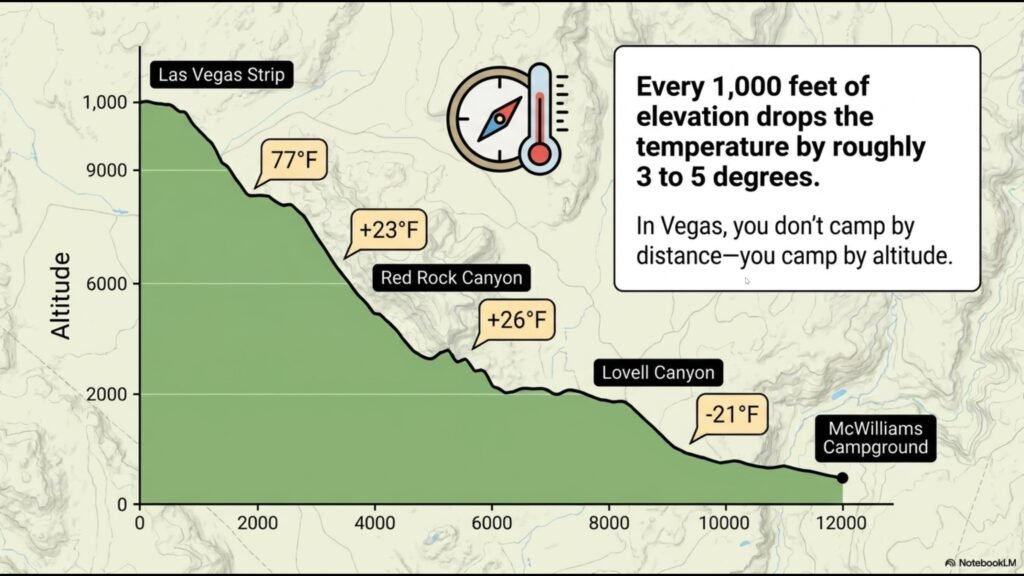
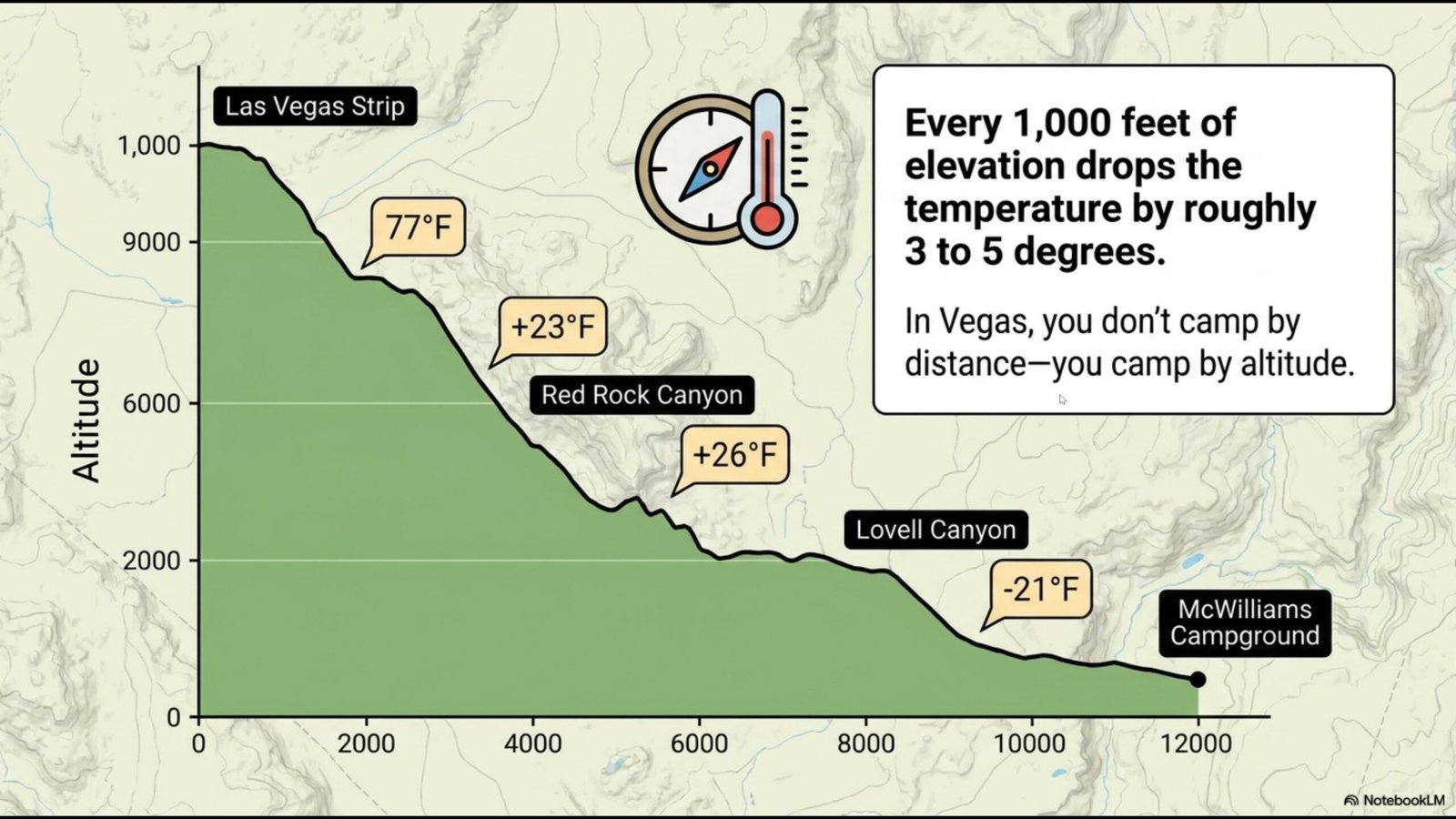
You can also talk to the slides after the fact. On one of my deck graphics, the word “camp” was crammed in and hard to read. So I just told it: “the word camp in this is not readable can you fix that?” and hit generate.
Before: the original graphic, with the cramped, hard-to-read text.
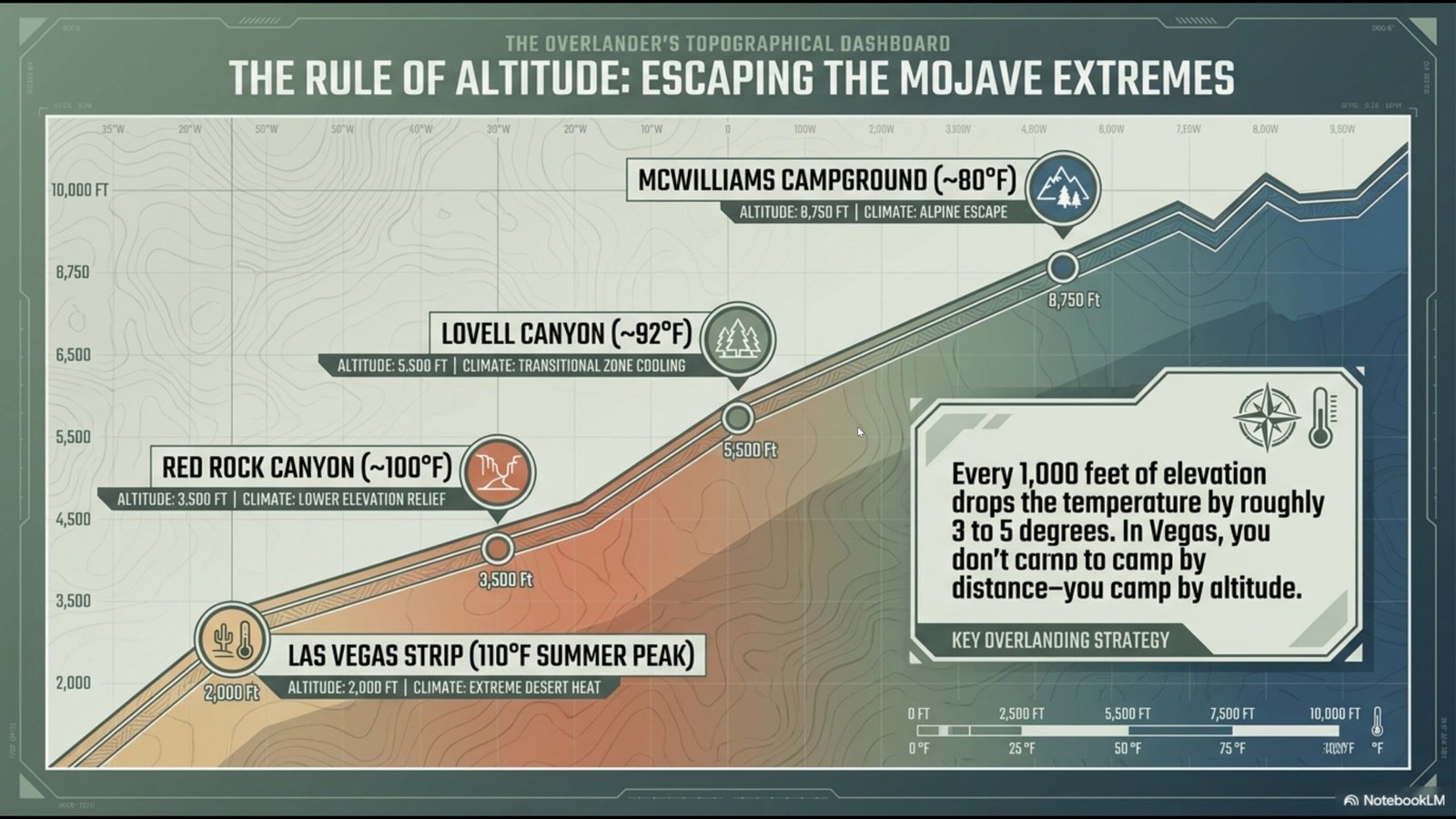
It fixed it — the new version is clean and readable. But here’s the honest catch: it didn’t just repair the one word. It regenerated the entire graphic. Different layout, different styling, the whole thing.
After: readable now — but a completely different graphic, not a surgical fix.
That’s worth knowing going in. When you ask for a small text fix, be ready for a full redraw rather than a surgical edit.
This is where I’ll give a nod to Copilot’s image editing, which handles this one specific thing a bit better. In Copilot, if it recognizes the text fields in an image, you can click straight into them and edit the text directly — no prompting required, which is genuinely handy. It’s not perfect; the sizing doesn’t always cooperate and you have to get a little creative to make it fit. And of course, if you want truly precise control, editing a PowerPoint in Microsoft Office is always going to be the clean, predictable option. But for in-place text edits inside a generated image, Copilot’s click-to-edit approach has an edge over describing the change by prompt.
Working from a folder and a spreadsheet
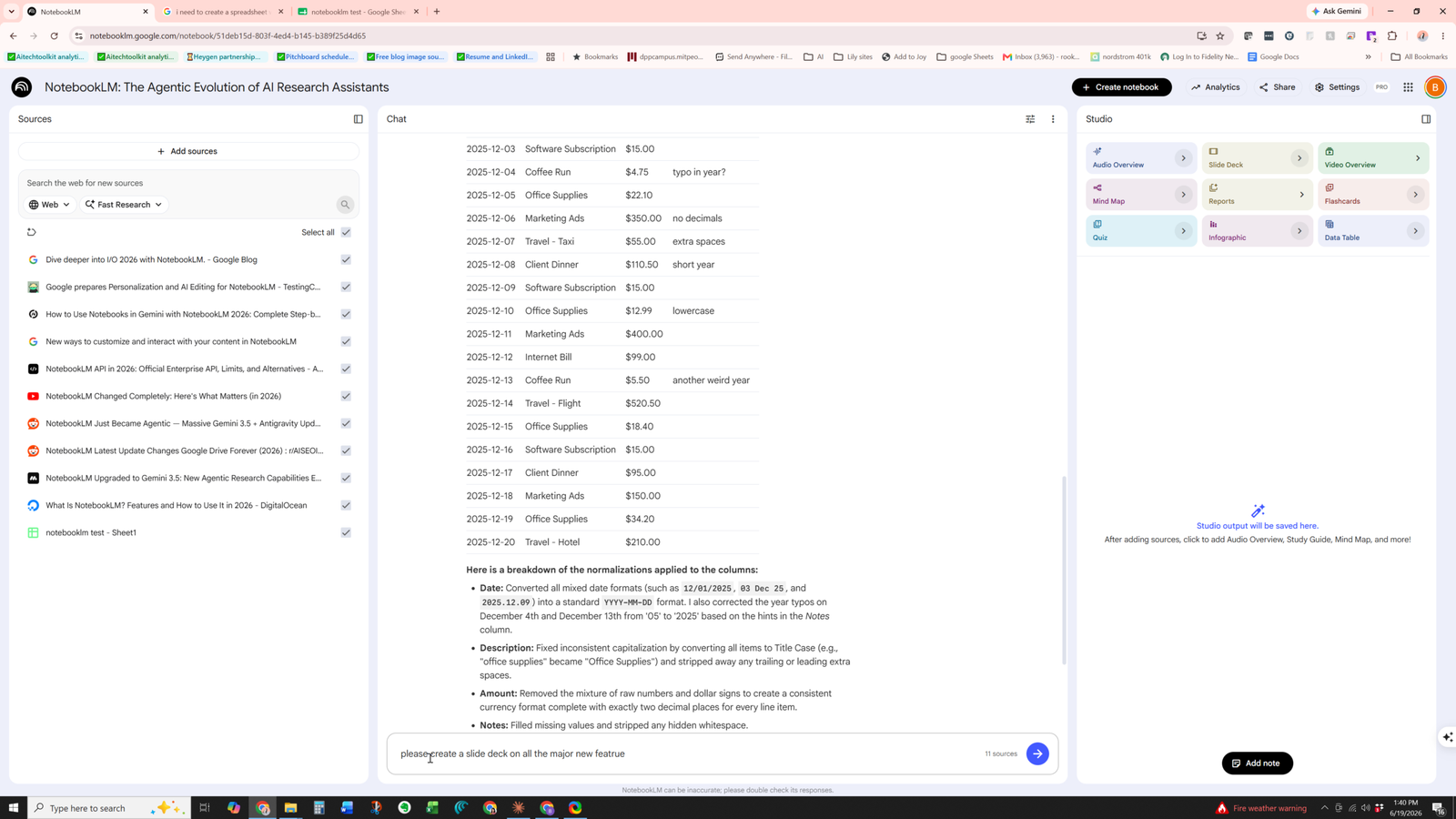
The last thing I tested was pulling from my own files. I pointed it at a messy expense spreadsheet sitting in Drive — inconsistent date formats, mixed text and numbers, scattered columns — and asked it to look at the sheet in my sources and normalize the data in the columns.
Pointed at a messy spreadsheet source, it cleaned and normalized the columns.
It worked. It walked through what it cleaned up — standardizing the dates, tidying the columns, sorting out the inconsistencies — and gave me back something usable. The one wrinkle: the spreadsheet sourcing didn’t update the instant I changed things. My guess is there’s a refresh interval on the file connection, because it caught up rather than reacting immediately. Not a dealbreaker, just something to expect.
The verdict
These are big upgrades, and the three that matter most — creating from a prompt, doing its own research, and editing on request — all worked smoothly. The rough edges are minor and easy to work around once you know they’re there: a text-fix request can redraw a whole graphic, and file sourcing seems to refresh on a delay rather than instantly. None of that dented the experience. NotebookLM went from a tool I reached for occasionally to one I’d actually build a workflow around.